Common challenges
Setup and environment problems
Students often start in different places. One learner cannot install Python, another has a different version, and someone else is using a school device with restrictions. Before the lesson has really begun, time has already gone into setup rather than teaching.
Visibility and support
In online Python lessons, it is hard to keep a shared view of the code. Students can fall behind quietly, and supporting several learners at once becomes difficult when you cannot immediately see what each person is working on.
A simpler approach
A practical way to teach Python online is to use a browser-based setup where everyone works in the same place. That removes install problems, keeps the environment consistent, and makes shared coding sessions much easier to manage.
With a collaborative Python editor, you can demonstrate code live, let learners edit together, and move between guided practice and independent work without switching tools. For a python classroom, that consistency matters more than flashy features.
How to run a live Python lesson
Step 1
Step 1: Start a session
Begin by opening one shared workspace for the lesson. That gives you a single place to demonstrate the code and a single environment for students to work in.
Step 2
Step 2: Share the session code or link
Once the workspace is ready, share the session link or short code. That removes the usual back-and-forth around installs and helps everyone join the same lesson quickly.
Step 3
Step 3: Walk through code together
Use the first part of the lesson to model the code live. This works well for explanation, prediction, tracing, and short teacher-led examples before students begin changing the program themselves.
Step 4
Step 4: Let students work in pairs or groups
After the demonstration, move into pair programming or small-group work. This keeps students active and makes python lessons online feel more like a real classroom rather than a one-way screen share.
Step 5
Step 5: Review and discuss solutions
Finish by bringing attention back to the shared code, comparing solutions, and discussing improvements. That review stage is often where students make sense of the lesson and connect the coding to the underlying ideas.
Using Paired in a lesson
Paired fits this approach by keeping the lesson browser-based from the start. There is nothing for students to install, they can join with a code, and the teacher can guide the class live in one collaborative Python editor.
It works well for direct instruction, group work, pair programming, and remote teaching. In practice, that means less time lost to environment problems and more time actually teaching Python.
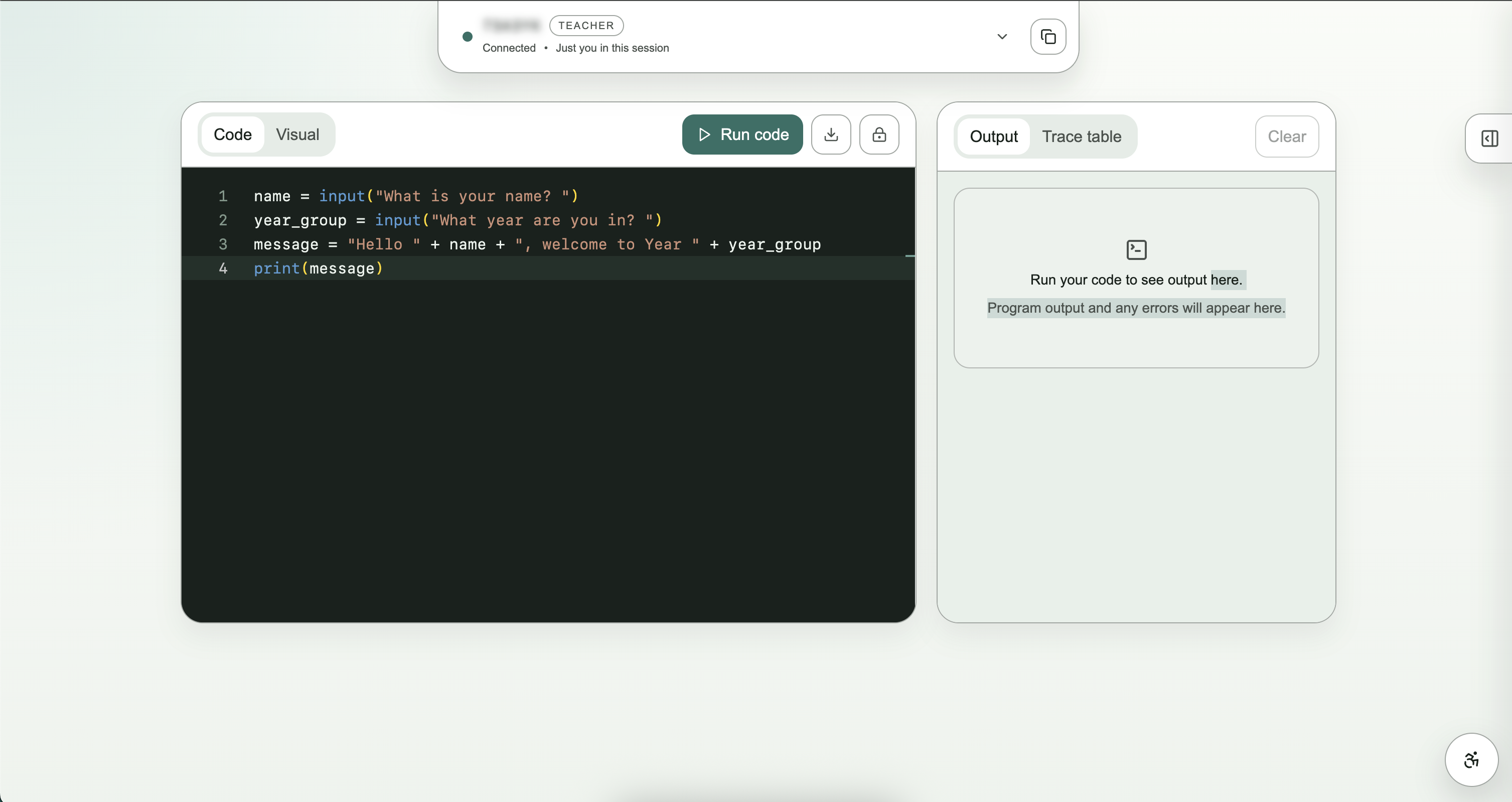
Example lesson flow
- Starter task: begin with a short prediction or debugging prompt using a small GCSE or A-Level style code example.
- Guided coding: model a solution live, explain the key lines, and check understanding as you go.
- Independent work: ask students to adapt the code, solve a related task, or extend it in pairs.
- Review: return to the shared workspace, compare approaches, and discuss what made some solutions clearer or more robust than others.
Ready when you are
Ready to start your first session?
Create a shared room, invite learners, and begin coding together in the browser.